

Share a comm externally
Any workspace member can share a comm externally.1
Open the comm
Navigate to the comm to share.
2
Open the share menu
Click Share in the top right of the comm.
3
Enable external access
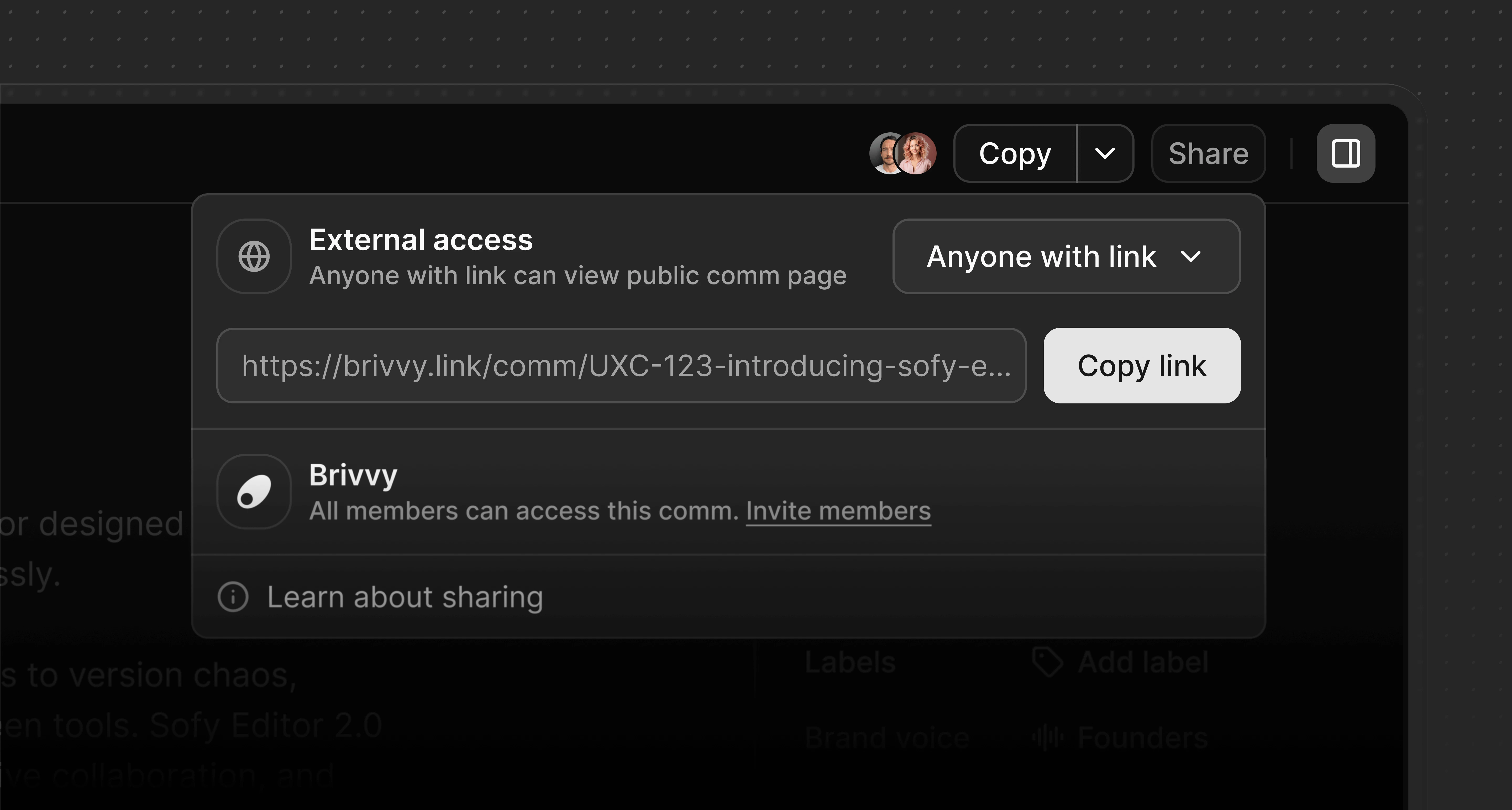
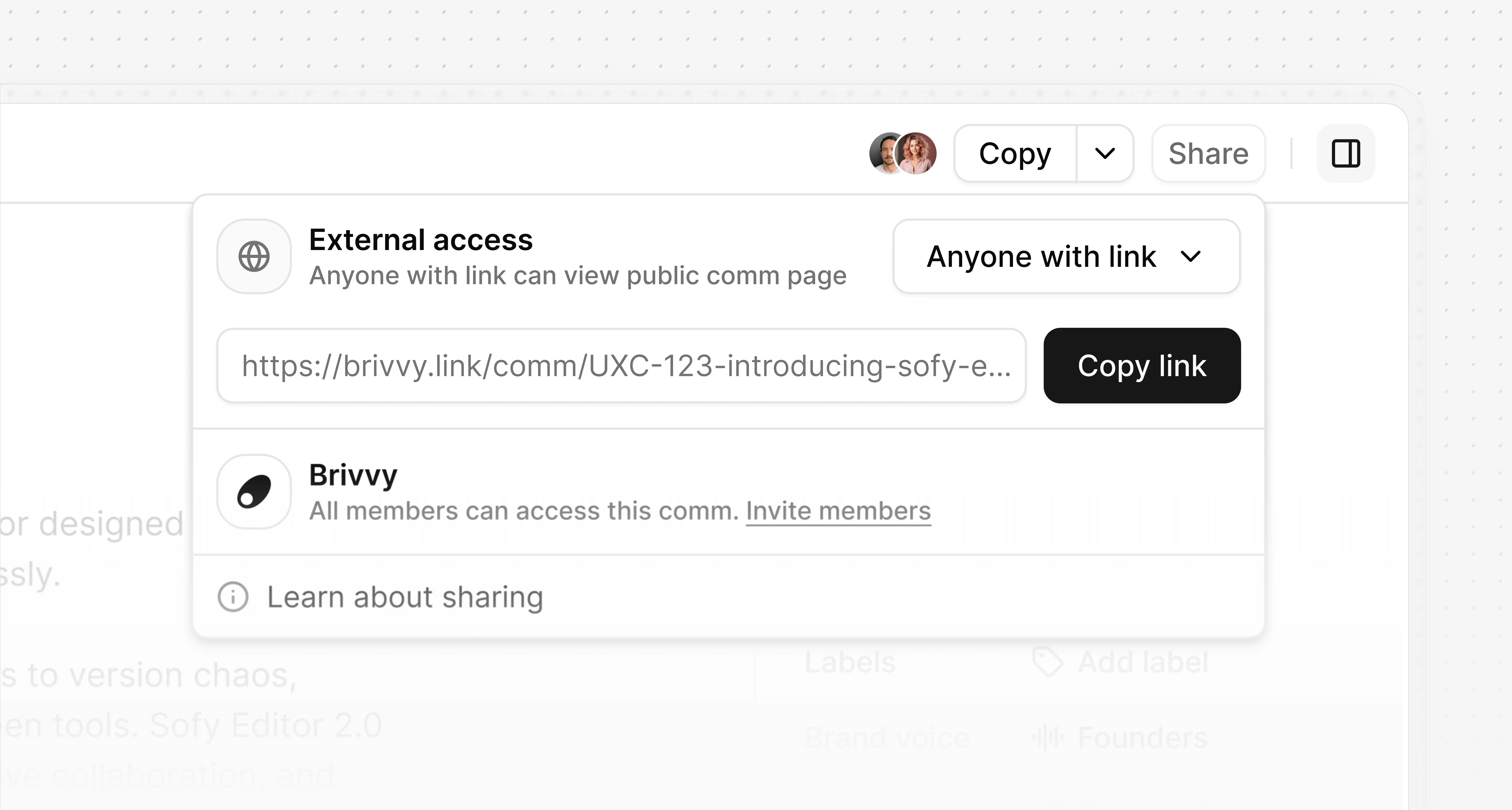
Under External access, open the dropdown and select Anyone with link. Brivvy automatically generates a public link.
4
Copy and share the link
Click Copy link and send it to recipients.
What recipients see
Recipients who open a public comm link see a clean, read-only page with the full comm content. They cannot edit the comm, leave comments or access any other part of the workspace. An Open app button is visible to anyone who is already a workspace member.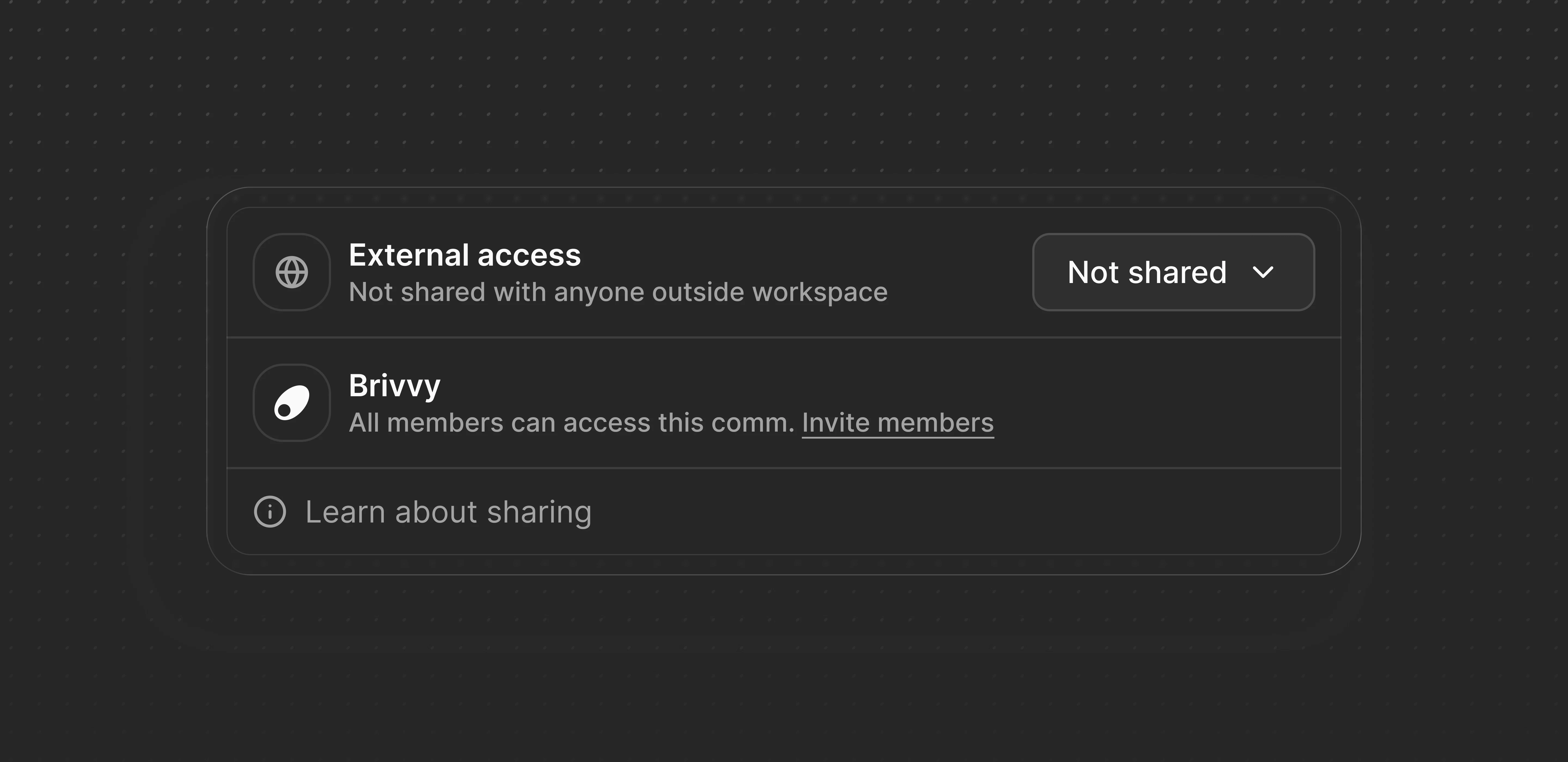
Manage access
Disable external access
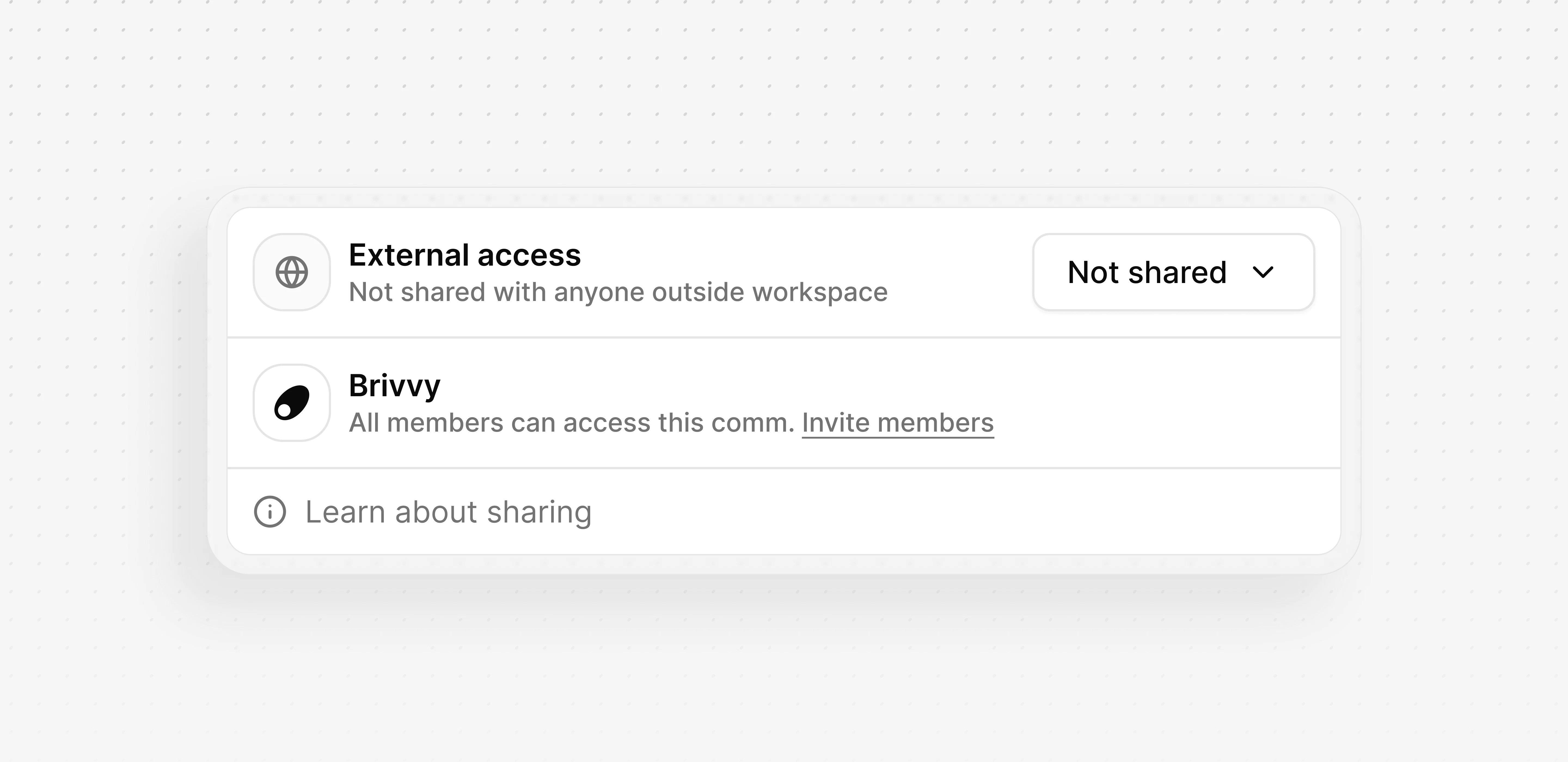
To revoke access, open the share menu and change the External access dropdown back to Not shared. The link is disabled immediately and anyone who previously had it will no longer be able to view the comm.Regenerate the link
To invalidate an existing link without disabling access entirely, click the regenerate icon next to the link field. Brivvy generates a new link and the previous one stops working immediately.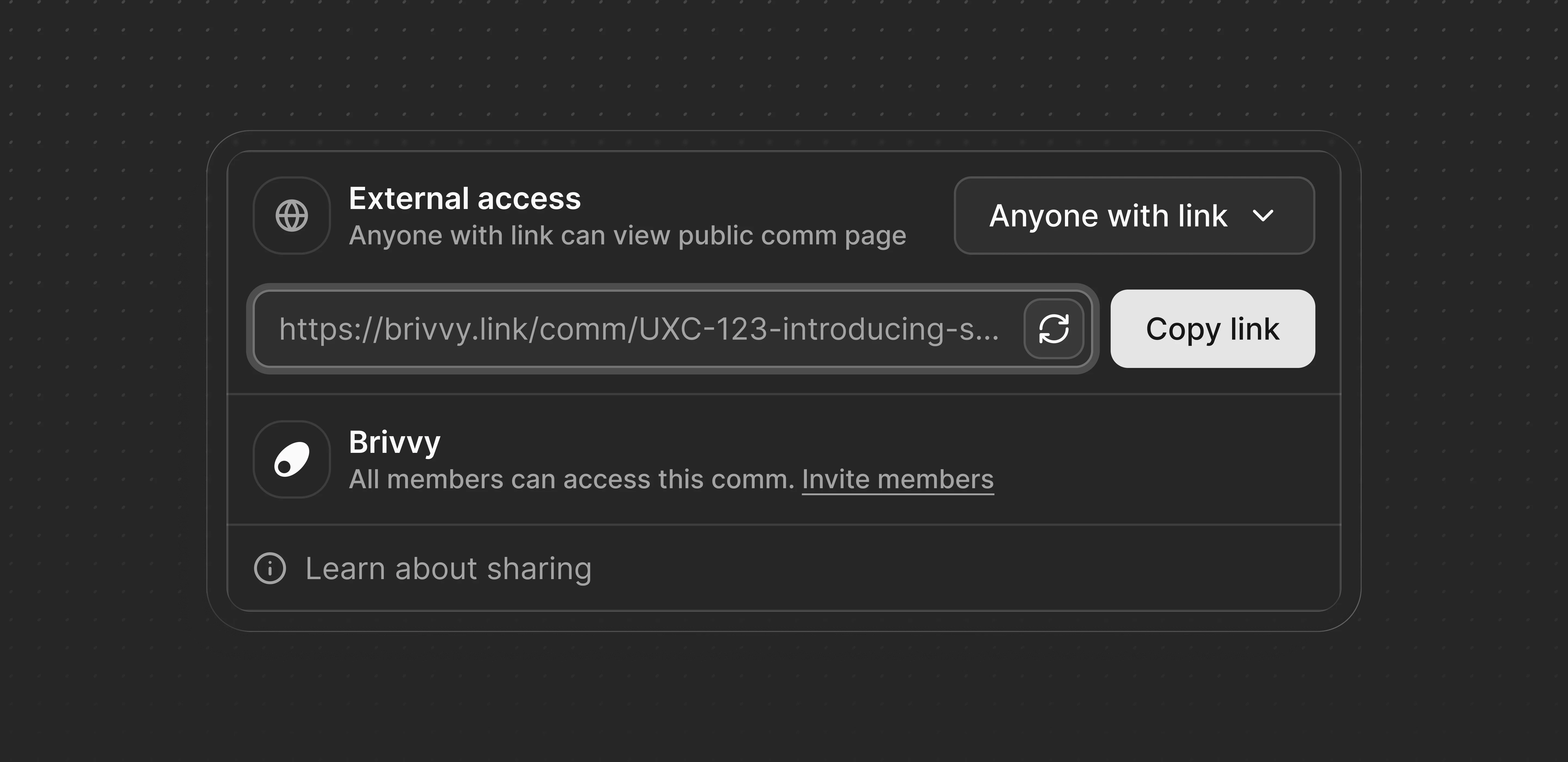
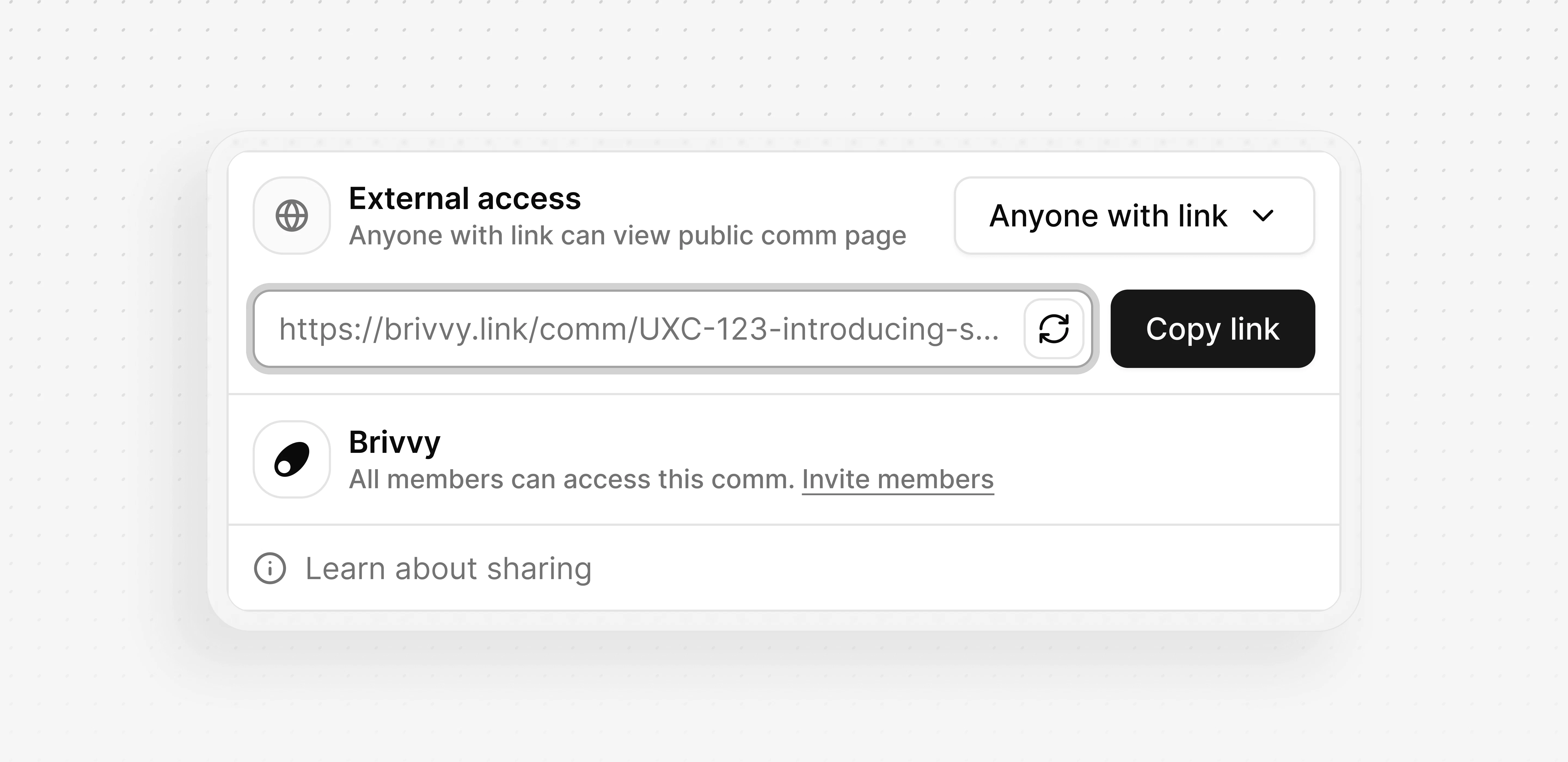
Regenerating a link cannot be undone. Anyone with the old link loses access as soon as the new link is generated.