Preview Brand Voice Cover Light
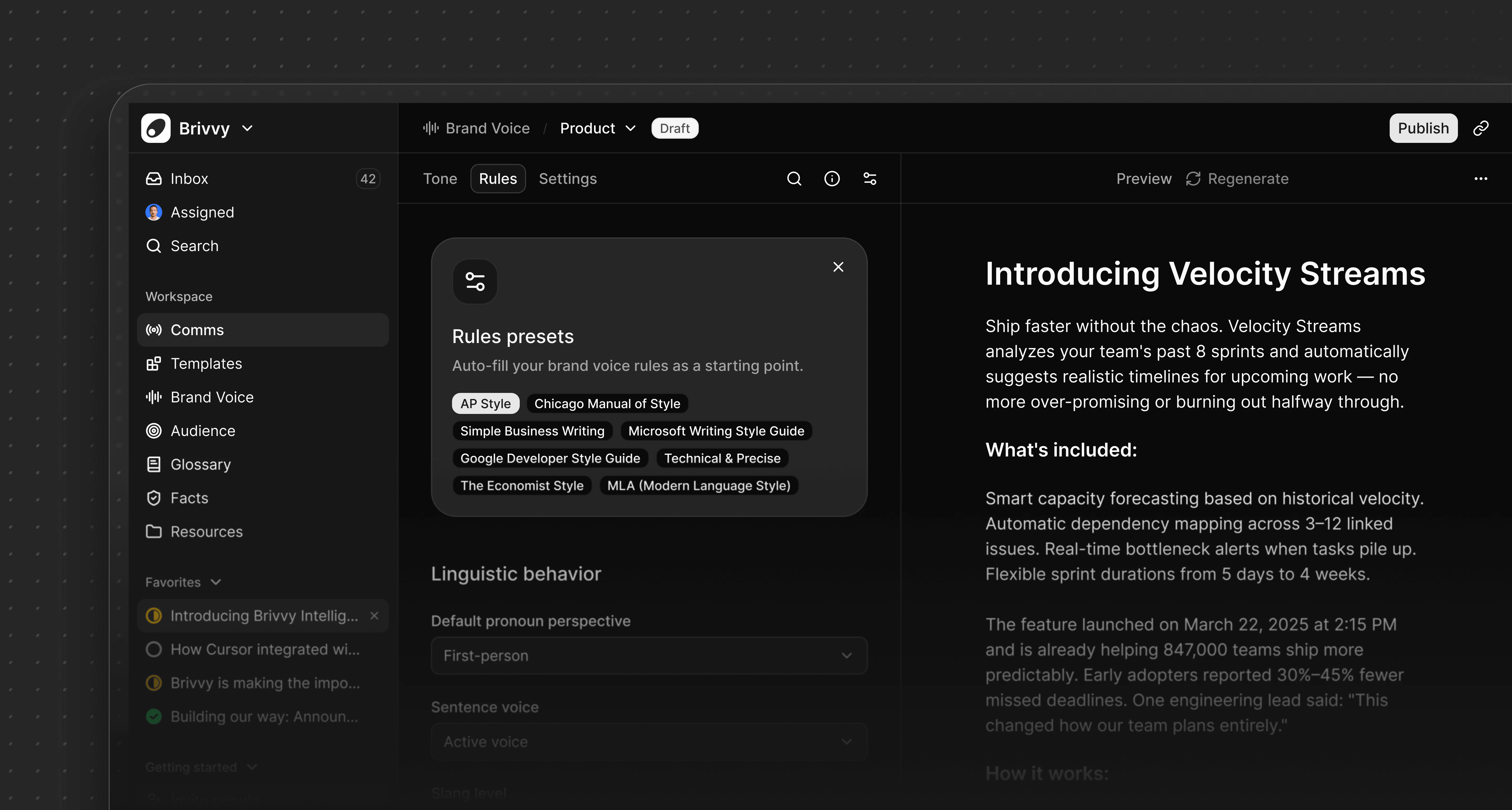
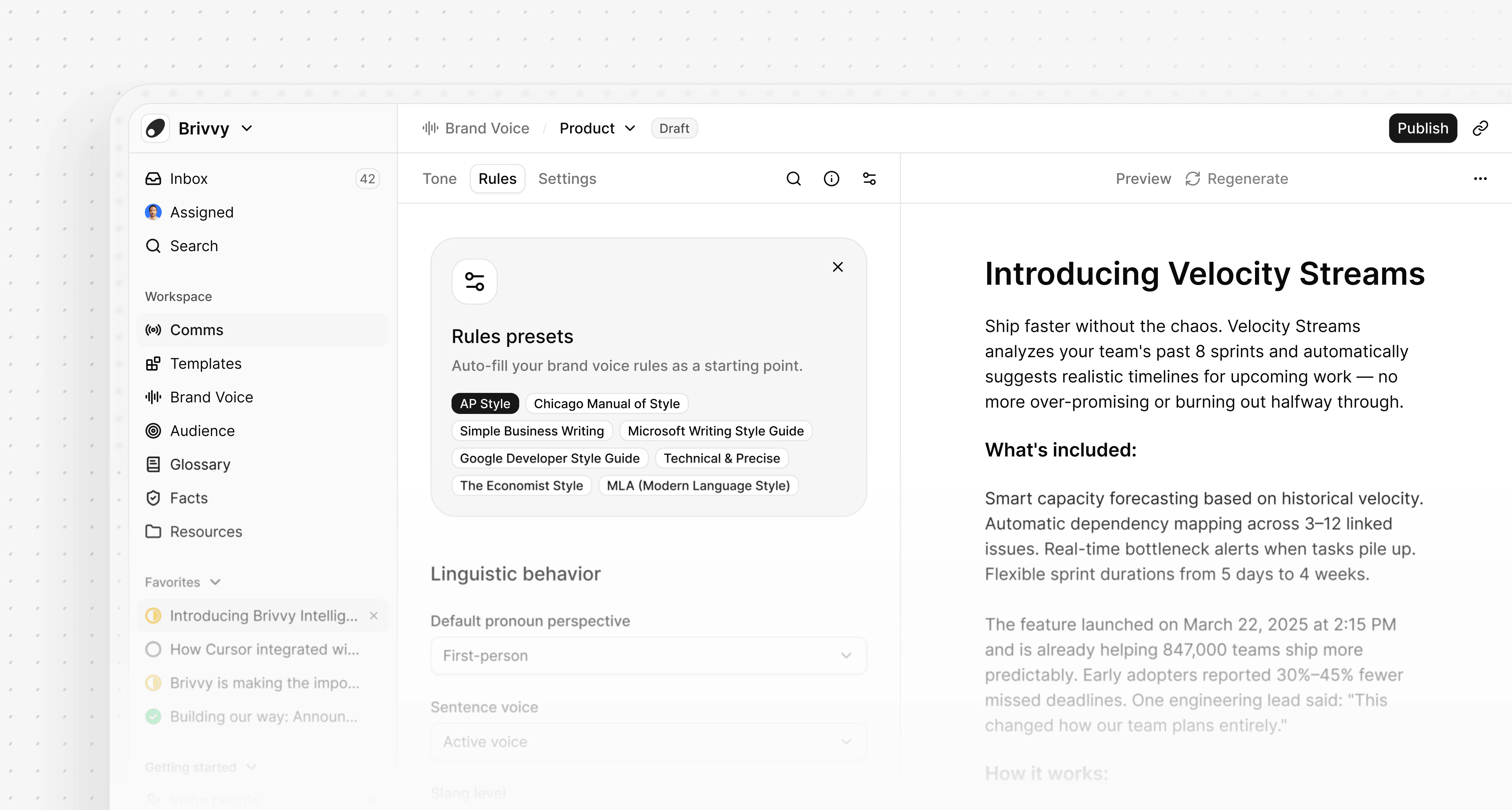
Preview brand voice lets you see the effect of your configuration in real time, before any content is created. It is a practical way to fine-tune settings and understand how small adjustments change the way AI writes on behalf of your organization.

How to preview a brand voice

  1. In your Brivvy workspace, navigate to the Brand Voice tab.
  2. Select the brand voice you want to preview, or create a new one if needed.
  3. Select Preview to open the preview panel alongside the configuration.
  4. Make changes to Tone dimensions or Rules. The preview updates in real time to reflect each adjustment.
  5. Once satisfied with the output, select Publish to apply the configuration across the workspace.
To regenerate the preview, you must make a change to Tone or Rules. The preview does not refresh automatically on open.

What preview shows

Preview reflects the two core components of a brand voice: Tone and Rules. Tone controls the emotional character of the writing. Each dimension is adjustable on a scale of 1 to 10:
DimensionLow (1)High (10)
WarmthDetached, clinicalFriendly, personable
ConfidenceTentative, hedgingAssertive, definitive
FormalityCasual, conversationalFormal, structured
PlayfulnessSerious, measuredLight, witty
Technical depthAccessible, plain languagePrecise, expert-level
Rules define the specific linguistic and stylistic constraints applied during generation. These span:
CategoryExamples
Linguistic behaviorVoice, perspective, use of contractions and casual phrasing
PunctuationDashes, commas, semicolons, exclamation marks
Formatting and structureHeading case, sentence length, paragraph length
Spelling variantsPreferred spelling and regional conventions
Dates, times and numbersFormatting conventions for each

Preview theme

The preview theme lets you set an industry context for the generated output. Adding a theme helps Brivvy produce more realistic sample content, making it easier to evaluate how your brand voice settings will feel in practice. To set a theme, select a short industry or use case in the Theme field before opening the preview. Examples include “fintech”, “e-commerce”, “productivity tool” or “B2B SaaS”. The preview will incorporate that context into the generated content alongside your workspace name. Themes are optional. Without one, Brivvy generates a generic sample based on your configuration alone.